Usage of TFcancer
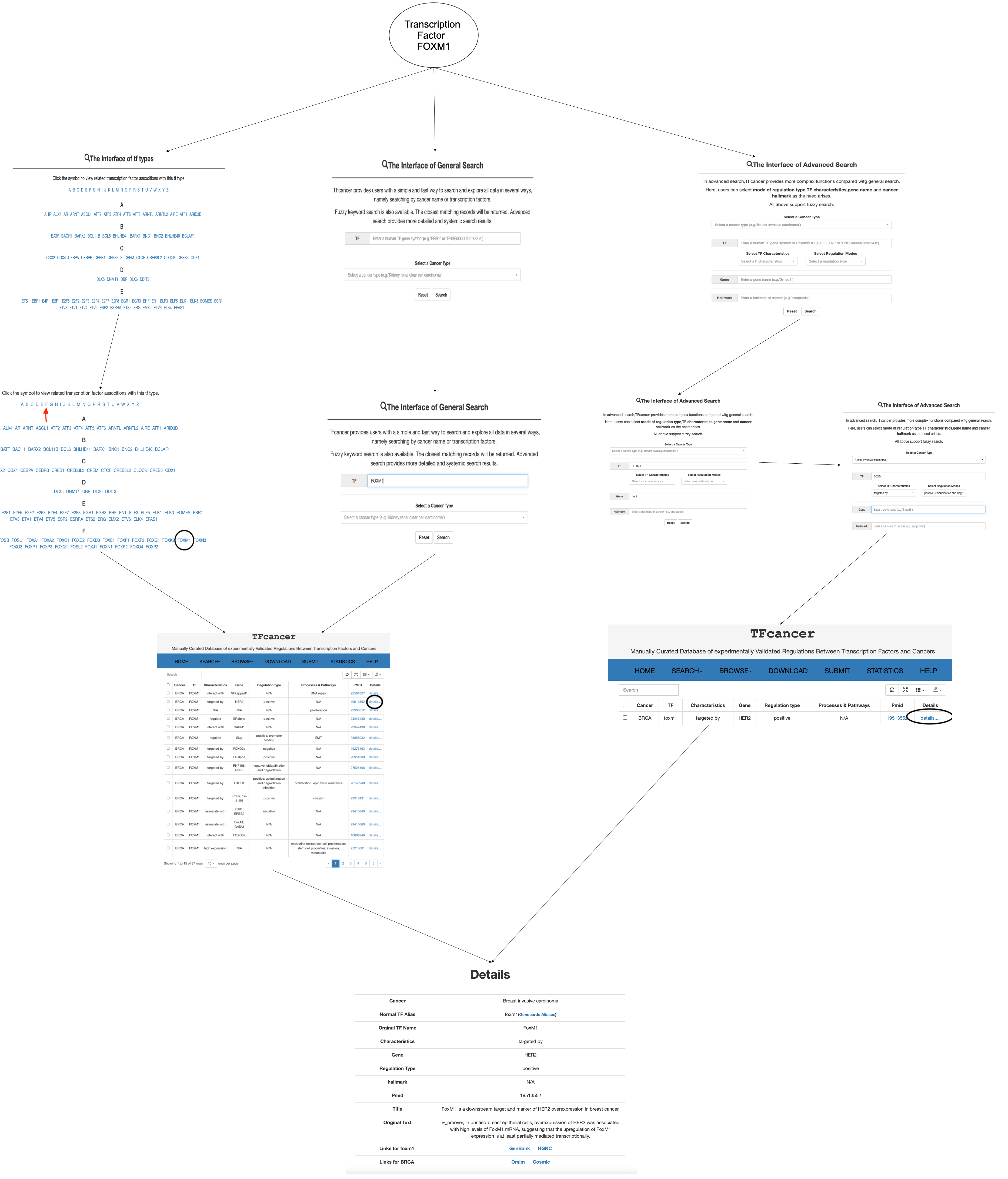
a: Seven sub-interfaces of TFcancer, among which SEARCH page contains a drop-down menu with general search and advanced search.
b: The general search allows users to search with specific TF names and 33 cancer full names.
c: The advanced search allows users to choose specific TF characteristics, related regulation modes, cancer associated processes and pathways and gene names, apart from TF names and cancer types.
d: Users can browse TF associtions of each cancer type by clicking the symbol of cancer abbreviation.
e: Users can also download associations of corresponding cancer type in xlsx format on DOWNLOAD page.
f: Users can submit new entries by adding new information on SUBMIT page.
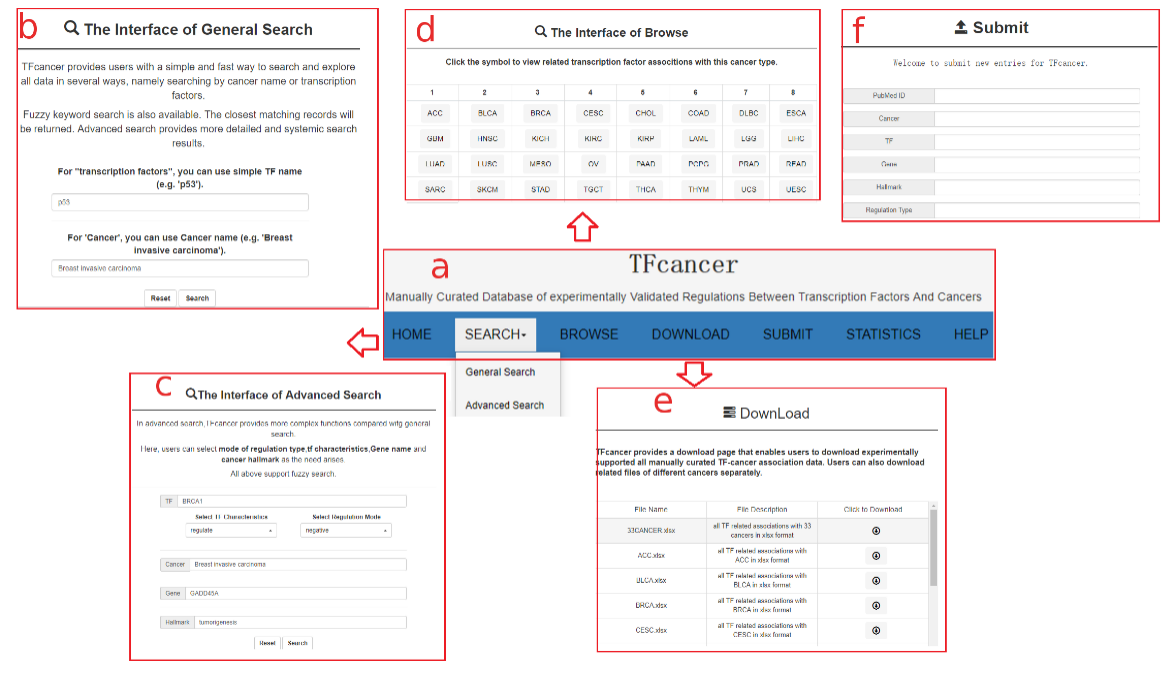
Figure 1 The introduction of database web interface
a: The advanced search interface
b: Users can select multiple TF characteristics according to their needs. The TF characteristics in TFcancer include the dysexpression, molecular alterations of TFs and TF interaction type with other genes..
c: For TFs having interactions with other genes, users can also select their regulation mode, such as positive, negative, some epigenetic modification or impacts of genes’ promoters.
d: After users submit their search requests, the elementary search result page is shown. For each entry, there are 8 columns containing cancer abbreviations, TF names, TF characteristics, genes that have interactions with TFs, regulation mode of the interactions between TFs and genes, cancer processes and pathways affected by TFs, PMID of related literatures and the link of detail page. Some entries do not contain certain information of some columns. They were filled with N/A. Users can also search in the page by inputing keywords at the top left corner of the page.
e: Users can also set different numbers entries per page.
f: The checkbox allows users to selectively display different columns on the page as the need rises.
g: Users can download entries in the result page in different formats.
h: In the detail page of corresponding entry, users can see the title of the literature and the original text of the association entry. TFcancer also provides external links of corresponding TFs and cancers.
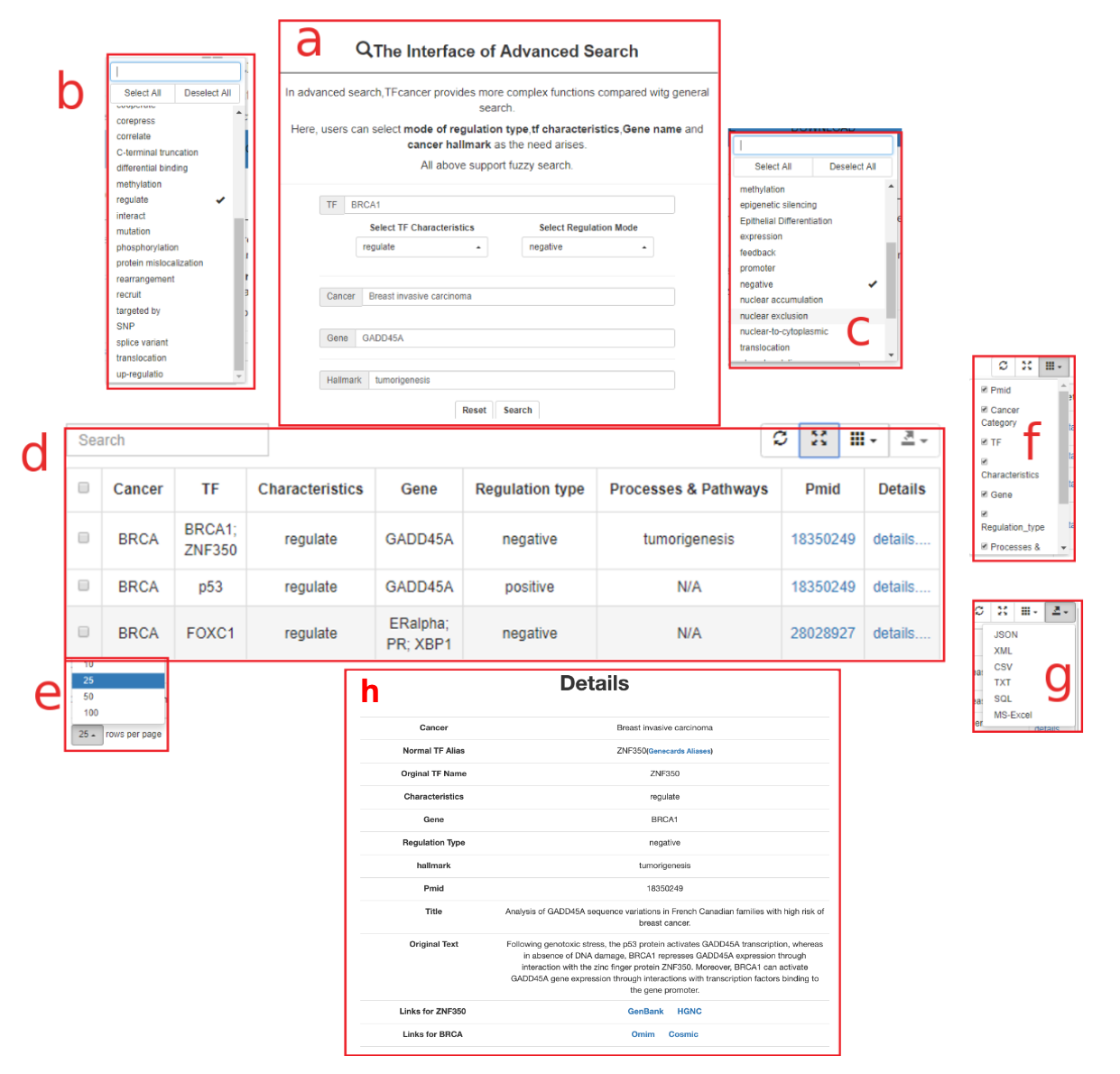
Figure 2 The use of advanced search and details of search results
a: We selected the FOXM1 transcription factor as an example of a samll case study and advanced search.
b: If users want to know the related information of FOXM1, they can search from the three pages of browse tf, general search, and advanced search.
c: On the browse_tf page, the user can first find the F letter through the letter list at the top, and then click the F letter to earn the transcription factor part of the page that starts with F. For FOXM1, it is the 16th in the first row of this section.
d: By clicking on FOXM1, users can get all the preliminary information about foxm1 in 33 cancers in the database. If the user only wants to know the FOXM1 transcription factor information in a certain cancer, we recommend that it is more convenient to find it from the general search page.
e: On the general search page, you need to enter FOXM1 in the tf line. Here, you can also enter the corresponding ensembl number ENSG00000111206 of FOXM1. After entering the name of tf, you need to select the cancer you want to search for in the drop-down box of cancer. It is worth noting that in the tf box, we have a fuzzy search function, you only need to enter a few letters to find the tf name you want.
f: If the user wants to go further and want to know which genes foxm1 is related to, we can start to find it from the advanced search page. On the advanced search page, users can see many places for input and selection, but on this page, users must first determine the tf and cancer they want to find before they can enter the information they want to find elsewhere. In this example, the user first needs to enter FOXM1 in the tf box on this page, and then enter the gene they want to find in the gene box. Here we have selected HER2 as a demonstration example.
g: Of course, we can also make good use of other things on this page. Before that, we must determine the cancer we want to learn. Only when tf and cancer are confirmed can we make more choices on this page. Here we have chosen FOXM1 and BRCA cancer as our demonstration examples.
h: After determining the relevant tf and cancer, when you click on the Select TF Characteristics section, it will automatically show the relevant options. If you click Select Regulation Modes, a similar situation will appear. For the hallmark box, we support fuzzy search, you can enter a small number of letters, then the related information will appear.
i: In the above case, we choose TF Characteristics as targeted by, Regulation type as positive and empty hallmark as our final search criteria, which will directly display the most relevant results.
j: Now we have obtained our preliminary results through the foxm1 example. In this preliminary results page, users can intuitively feel tf, gene, cancer and related information, we will not repeat them. When clicked.
k: In the detail page, the user can further confirm the relationship between tf and gene in the Title and Original Text lines. At the same time, we also provide external links to relevant public databases to facilitate users to go further and learn the information they want more easily.